> ## Documentation Index
> Fetch the complete documentation index at: https://paper.brimble.io/llms.txt
> Use this file to discover all available pages before exploring further.
# Brimble Agent
> The in-dashboard assistant that can launch projects, read logs, and act on your workspace.
**Brimble Agent** is the chat assistant inside the [Brimble dashboard](https://app.brimble.io). You stay signed in as yourself. It can launch a project, watch that launch, read logs, change dashboard resources, and open a pull request when a code fix is required.
It uses the workspace and environment you already have open. If you are on a project page, that project is already in context. You do not need to paste IDs.
## Where to open it
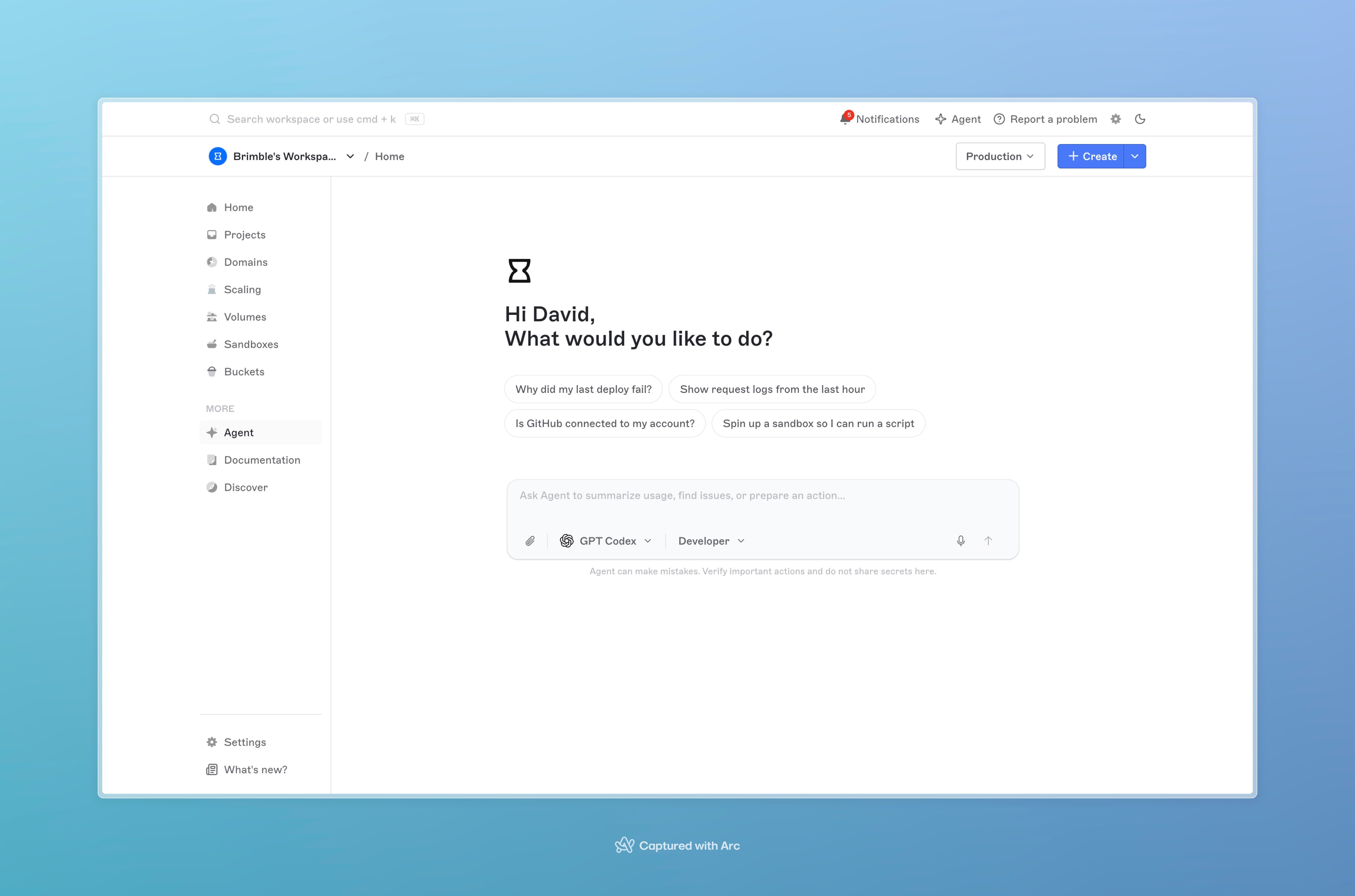
* **Agent** in the sidebar opens the full page (`/ai`).
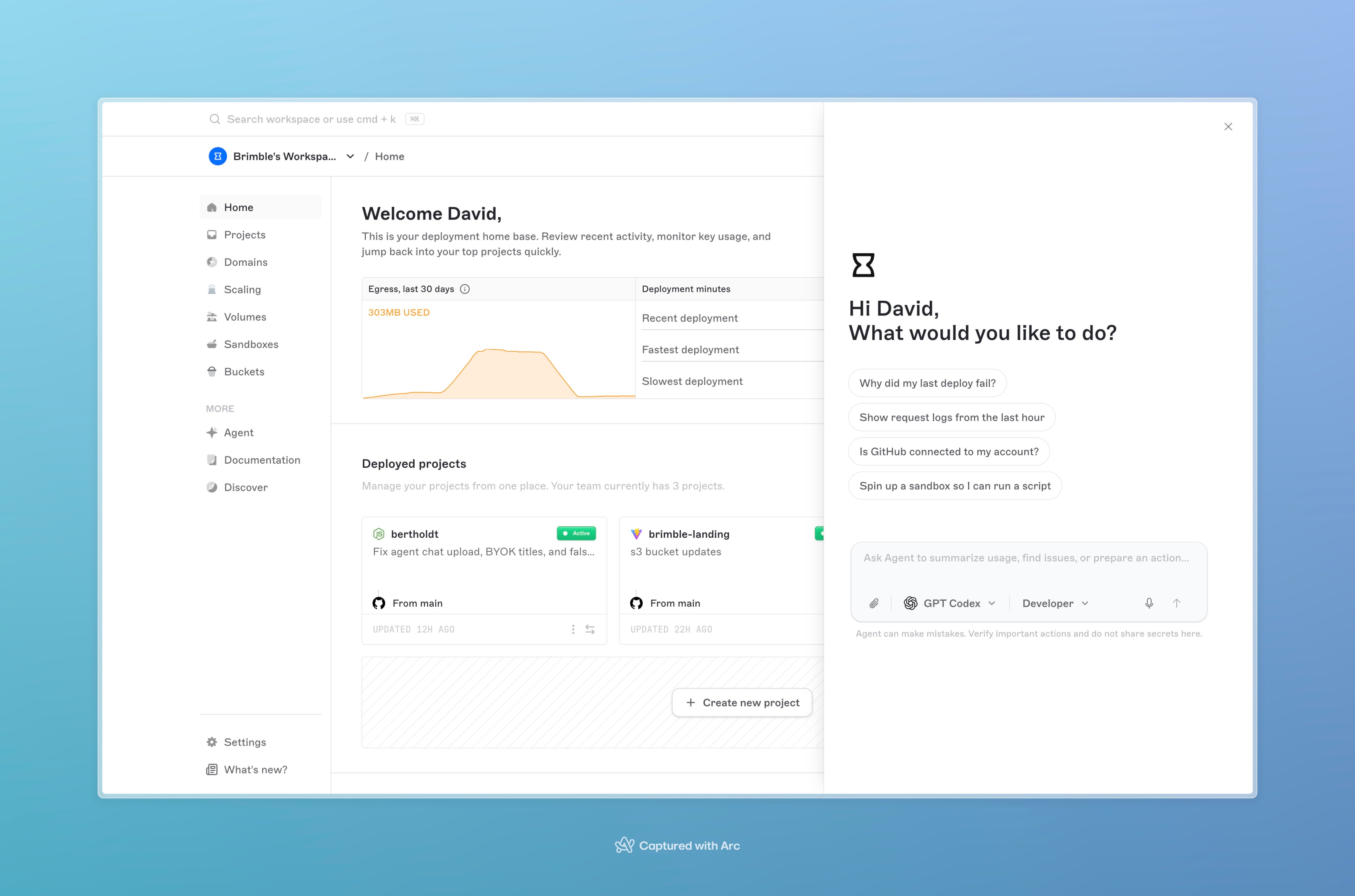
* The Agent button in the top bar opens a slide-over panel, unless you are already on `/ai`.
You can start a new chat or reopen a recent one. History is searchable. You can delete a chat when you are done with it.
 ## What it is for
On first use, the dashboard lists four jobs:
* **Launch until it's live.** Ask it to put a project online. It watches the launch, then tells you if it went live or what went wrong.
* **Finds what broke.** If a site is down or a launch failed, it reads the logs. You do not need to paste them.
* **Works in the dashboard for you.** It can add a domain, check usage, list projects, and more, instead of only pointing at screens.
* **Fixes and tests code when that's needed.** For a real build or runtime error it can run a private copy of the project, change a file, and open a pull request. It will not offer that unless it needs to.
See [What it can do](/agent/what-it-can-do) for the main workflows.
## Agent, MCP, and sandbox coding agents
These are three different products.
| Product | Where you use it | What it is |
| ---------------------------------------------------------------- | --------------------------------- | ------------------------------------------------------------------------------------------------------ |
| **Brimble Agent** | Dashboard chat | Signed-in assistant for the current workspace |
| **[Brimble MCP](/mcp/overview)** | Claude, Cursor, or another client | Official MCP server at `https://mcp.brimble.io`, authenticated with your [API key](/security/api-keys) |
| **[Sandbox coding agents](/sandboxes/cookbook/ai-coding-agent)** | A sandbox you provision | Templates such as Claude Code or Codex running inside that sandbox |
Use Agent when you are already in the dashboard. Use Brimble MCP when you want an external client to manage the account. Use a sandbox coding agent when you want a CLI coding tool on isolated compute.
## Next steps
* [Using the agent](/agent/using-the-agent)
* [What it can do](/agent/what-it-can-do)
* [Keys and limits](/agent/keys-and-limits)
## What it is for
On first use, the dashboard lists four jobs:
* **Launch until it's live.** Ask it to put a project online. It watches the launch, then tells you if it went live or what went wrong.
* **Finds what broke.** If a site is down or a launch failed, it reads the logs. You do not need to paste them.
* **Works in the dashboard for you.** It can add a domain, check usage, list projects, and more, instead of only pointing at screens.
* **Fixes and tests code when that's needed.** For a real build or runtime error it can run a private copy of the project, change a file, and open a pull request. It will not offer that unless it needs to.
See [What it can do](/agent/what-it-can-do) for the main workflows.
## Agent, MCP, and sandbox coding agents
These are three different products.
| Product | Where you use it | What it is |
| ---------------------------------------------------------------- | --------------------------------- | ------------------------------------------------------------------------------------------------------ |
| **Brimble Agent** | Dashboard chat | Signed-in assistant for the current workspace |
| **[Brimble MCP](/mcp/overview)** | Claude, Cursor, or another client | Official MCP server at `https://mcp.brimble.io`, authenticated with your [API key](/security/api-keys) |
| **[Sandbox coding agents](/sandboxes/cookbook/ai-coding-agent)** | A sandbox you provision | Templates such as Claude Code or Codex running inside that sandbox |
Use Agent when you are already in the dashboard. Use Brimble MCP when you want an external client to manage the account. Use a sandbox coding agent when you want a CLI coding tool on isolated compute.
## Next steps
* [Using the agent](/agent/using-the-agent)
* [What it can do](/agent/what-it-can-do)
* [Keys and limits](/agent/keys-and-limits)