> ## Documentation Index
> Fetch the complete documentation index at: https://paper.brimble.io/llms.txt
> Use this file to discover all available pages before exploring further.
# Files
> Mount small config and secret files into a project's container.
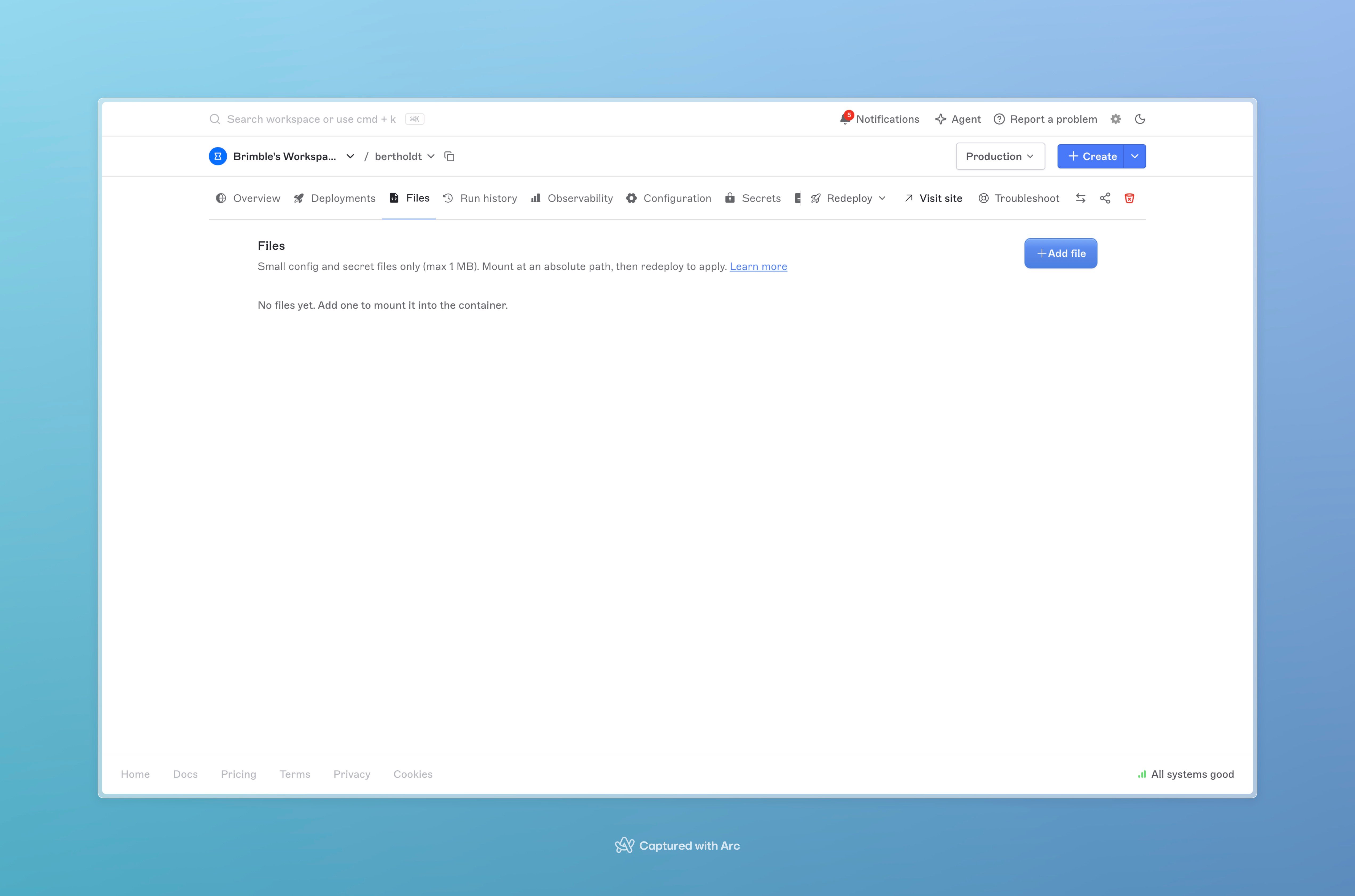
**Files** is a project tab for small config and secret files. You upload a text file, set an absolute path, and Brimble mounts it into the container on the next redeploy.
This is not the project's source tree, git files, or a file browser. Use it when the app needs a real file on disk, such as a TLS cert, a service-account JSON, a `firebase.json`, or a PHP `ini`. For key/value settings, use [environment variables](/environments/environment-variables). For writable storage that survives restarts, use a [persistent disk](/projects/persistent-disk).
The tab appears on container projects (web service, worker, MCP server). It is hidden on static sites, HTML-only projects, and databases.
## Add a file
1. Open the project.
2. Go to **Files**.
3. Click **Add file**.
4. Upload a text file (drag and drop or choose a file).
5. Set **Name** (a label in the dashboard) and **Mount path** (the path inside the container).
6. Leave **Secret** on if the contents should stay hidden in the dashboard. The mount path stays visible either way.
7. Click **Create**.
The dashboard then offers **Redeploy**. The file is not in the running container until a redeploy finishes.
Mount path rules:
* Must be absolute, for example `/etc/app/config.yaml`.
* Must not contain `..`.
Limits:
* Text files only.
* **1 MB** per file.
 ## Edit or replace a file
Click the pencil on a row. You can change the name, mount path, and Secret setting. Upload a new file only if you want to replace the contents.
Secret files load their contents when a writer opens the editor. Readers can see the list, not the secret body.
## Delete a file
Click the trash icon and confirm. Redeploy so the container no longer has that path.
## Apply changes
Creating, updating, or deleting a file does not restart the project. The next launch or a **Redeploy** from the toast mounts the current set.
## When to use Files vs something else
| Need | Use |
| --------------------------------------------------------- | ------------------------------------------------------------ |
| A string the process reads from the environment | [Environment variables](/environments/environment-variables) |
| A small file the process opens by path | **Files** |
| Uploads, SQLite, or other data that must survive redeploy | [Persistent disk](/projects/persistent-disk) |
| Large objects, public assets, or S3-style access | [Object storage](/object-storage/overview) |
A WordPress example that raises PHP upload limits lives in [Deploy WordPress](/projects/deploy-wordpress#step-7-larger-uploads-optional).
## Next steps
* [Environment variables](/environments/environment-variables)
* [Persistent disk](/projects/persistent-disk)
* [Deployments](/projects/deployments)
## Edit or replace a file
Click the pencil on a row. You can change the name, mount path, and Secret setting. Upload a new file only if you want to replace the contents.
Secret files load their contents when a writer opens the editor. Readers can see the list, not the secret body.
## Delete a file
Click the trash icon and confirm. Redeploy so the container no longer has that path.
## Apply changes
Creating, updating, or deleting a file does not restart the project. The next launch or a **Redeploy** from the toast mounts the current set.
## When to use Files vs something else
| Need | Use |
| --------------------------------------------------------- | ------------------------------------------------------------ |
| A string the process reads from the environment | [Environment variables](/environments/environment-variables) |
| A small file the process opens by path | **Files** |
| Uploads, SQLite, or other data that must survive redeploy | [Persistent disk](/projects/persistent-disk) |
| Large objects, public assets, or S3-style access | [Object storage](/object-storage/overview) |
A WordPress example that raises PHP upload limits lives in [Deploy WordPress](/projects/deploy-wordpress#step-7-larger-uploads-optional).
## Next steps
* [Environment variables](/environments/environment-variables)
* [Persistent disk](/projects/persistent-disk)
* [Deployments](/projects/deployments)