
Prerequisites
- A Brimble account with a paid plan, or a free-tier project (some engines are restricted on free).
- A project that will use the database. The database can live on its own and you wire it into your service via an environment variable.
Supported engines
Versions available per engine are shown in the dashboard during provisioning.
Provision
- Open the dashboard.
- Click New project → Database.
- Pick the engine and version.
- Choose a region. Co-locate the database with the service that will use it; cross-region database calls add latency to every query.
- Pick a sizing tier (CPU, memory, storage). Start small; you can resize later.
- Set a name. Use lowercase with dashes, for example
acme-pg-prod. - Click Provision.
provisioning to active.
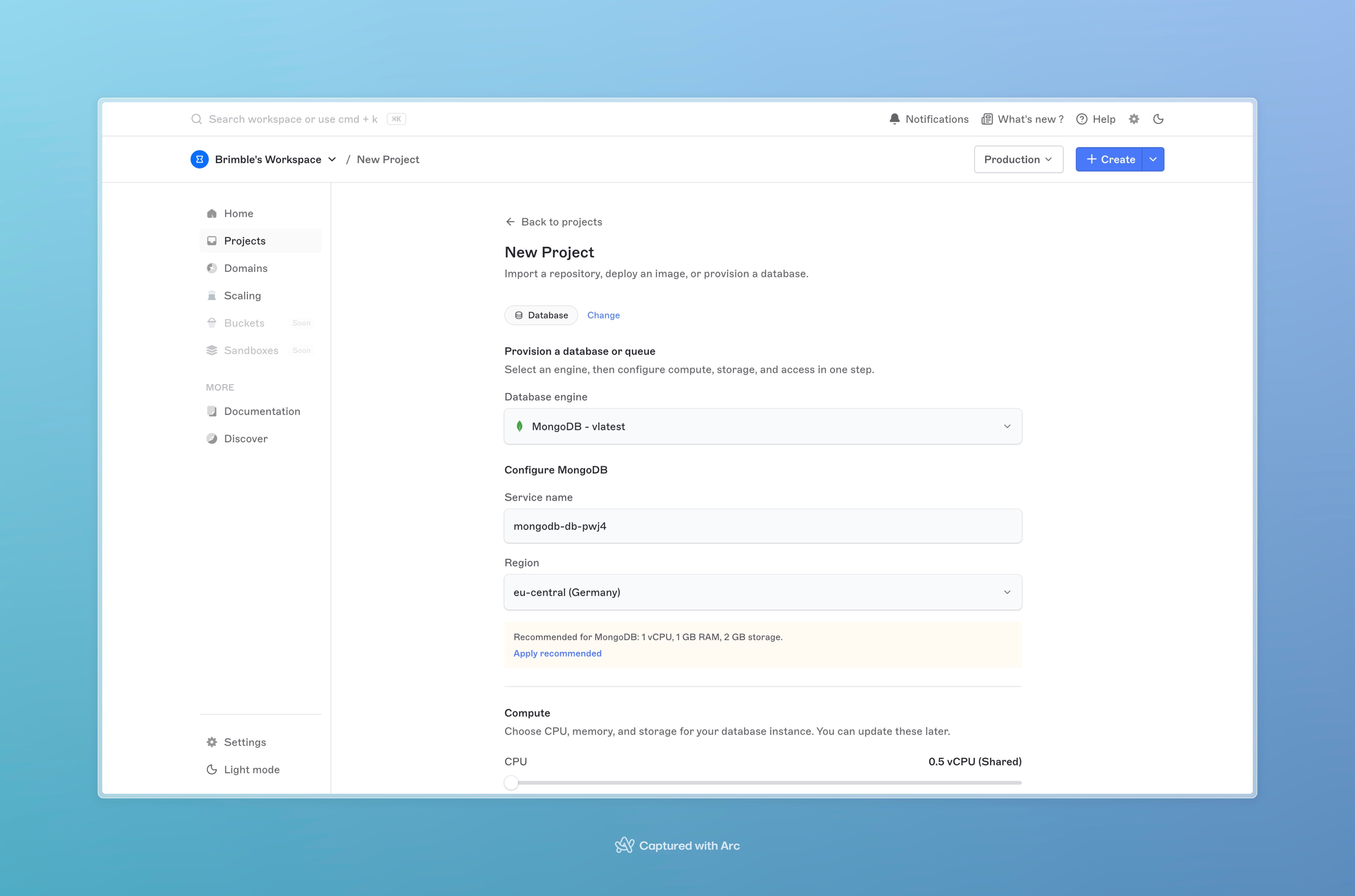
The database provisioning flow, top.
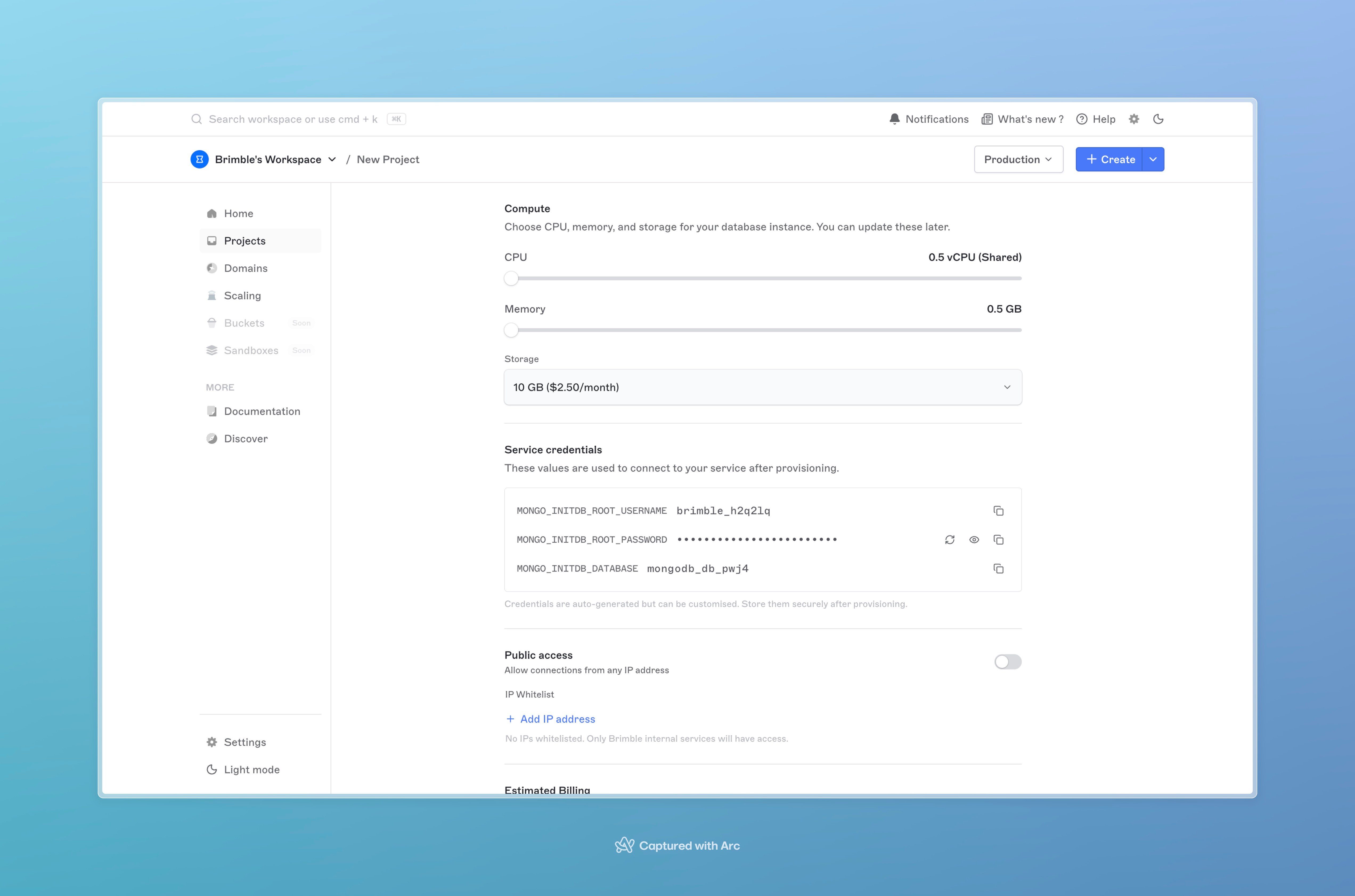
The database provisioning flow, sizing and confirm.
Get the connection string
Once active, the database’s overview page shows:- Connection string, a fully-formed URL using the public load-balancer hostname. Plug into your app.
- Host and Port, the public endpoint and port.
- User and Password, credentials.
- Database name, the default database for engines that have the concept.
These let you wire up consumers cleanly via env-variable references; see below.
Connect from a Brimble service
In the service that needs the database, set itsDATABASE_URL (or whatever your code expects) using environment-variable references. The references resolve at deploy time and pick up changes automatically.
For the fastest path, reference the database’s private hostname:
my-postgres with your database project’s slug. Connections opened to PRIVATE_SERVICE_HOST stay on Brimble’s internal network. No public hop, no bandwidth charge, lower latency.
The private hostname only works for consumers in the same workspace and region. Cross-region or external consumers should use the public connection string. For full details on the internal network, see Internal services.
Restrict who can connect
Public endpoints are reachable from anywhere by default. To restrict access to specific source IPs:- Open the database project.
- Go to Networking (or Whitelisted IPs).
- Add the IPs or CIDR ranges that should be allowed.
Resize a database
CPU, memory, and storage can be scaled up at any time. Storage can only grow, not shrink.- Open the database project.
- Go to Settings → Sizing.
- Pick the new size and click Apply.
Free-tier databases
Free-plan accounts can run a managed database, but the resource limits and lifecycle are different from paid plans. The flow is designed for prototyping and short-lived experiments, not production workloads. What you get on the free plan:- One database per account. The dashboard blocks creating a second.
- Capped at 10 GB storage, alongside the free-tier CPU and memory caps. The size sliders won’t go above the cap.
- Some engines aren’t available. The provision dialog hides or disables engines that aren’t offered on free; the dashboard surfaces the list.
- No backups. Hourly backups are enabled for paid personal accounts and team workspaces only (see Storage and durability).
Billing → Plan summarizes any upcoming free-tier deletions.
Upgrading the account at any point before expiry switches the database off the free-tier lifecycle, the trial counter is dropped, the database becomes regular paid storage, and backups start running on the next hourly schedule.
If the database is deleted at trial end, the data is unrecoverable. There’s no grace period after deletion. Plan for the deletion or upgrade ahead of it.
Storage and durability
Every Brimble database is backed by two independent layers so your data isn’t on one disk that one outage can take with it:1. Persistent volume (primary storage)
Each database container has a persistent volume mounted at the engine’s data directory (/var/lib/postgresql/data for Postgres, /data/db for MongoDB, the equivalent for the engine you picked). The volume lives on Brimble’s storage layer, not on the local disk of the host running the container.
What that means in practice:
- Container restarts keep the data. If the container restarts (a crash, a resize, a manual redeploy), it remounts the same volume on the way back up. No data loss; the engine sees the exact same disk it left.
- Host failures keep the data. If the host running your database goes down, Nomad reschedules the container onto another host in the region and remounts the same volume. The data follows the workload.
- Deploys keep the data. A version bump or a config change replaces the container, not the volume. The new container picks up the existing data.
- Storage grows, doesn’t shrink. You can scale storage up at any time from Settings → Sizing. Going down is not supported, the volume is your project’s source of truth.
2. Backups (independent copy)
On top of the volume, Brimble runs periodic backups to an independent storage system, separate from the volume that holds your live data. Backups protect against the rare cases the volume can’t, accidental deletes, table-level corruption, application bugs that wipe data, or the worst-case event where the volume itself is unrecoverable.
Backups are automatically enabled for:
- Team workspaces. Any database in a team workspace has hourly backups, no toggle.
- Paid personal accounts. Databases on a paid personal plan have hourly backups.
Downtime: what actually happens
Putting it together, here’s the user-visible picture for the kinds of events people worry about:- Container crashes. New container comes up on the same volume. The engine replays its WAL (Postgres) or oplog (Mongo) and reaches a consistent state. No data lost.
- Region-wide incident affecting hosts but not the storage layer. The volume is still intact. When the region recovers, the database comes back with all data.
- Volume corruption or unrecoverable failure. Restore from the latest backup. Data written between the most recent backup and the failure may be lost (up to ~1 hour, depending on when the failure happened relative to the last hourly snapshot).
- You dropped the wrong table. Restore from the latest backup.
Restoring from a backup
Restores go through support today. Open a ticket with:- The database project’s name and ID.
- The approximate timestamp you want to restore to (the latest hourly snapshot is what’s available; we’ll confirm the exact one).
- Whether you want the restore in-place or as a new database project.
Rotate the password
To rotate the database password:- Open the database project.
- Go to Configurations.
- Provide your new password or use the password generation button.
Troubleshooting
Connection times out. Either the database isn’t yetactive, or your IP isn’t on the whitelist. Check both.
Connection refused. The database is mid-restart (typically after a resize) or unhealthy. Open the project, the status will show restarting or degraded. Wait for it to return to active and reconnect.
Connection works locally but fails from the service. Make sure the service and database are in the same region for private-endpoint use, or that you’re using the public endpoint with TLS otherwise.
Provisioning failed. Open the database project; the status page shows the failure reason. Common user-fixable causes: name already in use in the workspace, or a payment issue. Click Retry to attempt provisioning again.
Next steps
- Manage environment variables, for wiring the connection string into a service.
- Service types, the full database options.