
Prerequisites
- A paid plan. Object storage isn’t available on the Free tier.
- A workspace context. Buckets belong to the workspace you create them under (personal or team).
Create a bucket
From the dashboard
- Open the dashboard.
- Go to Object storage → Buckets and click New bucket.
- Pick a name. Lowercase letters, digits, and dashes; minimum 3 characters. Names are slugified on save (
My Cool Bucketbecomesmy-cool-bucket). - Pick a region. This is permanent; you can’t move a bucket between regions later, you can only migrate the contents.
- Click Create. The bucket is ready immediately.
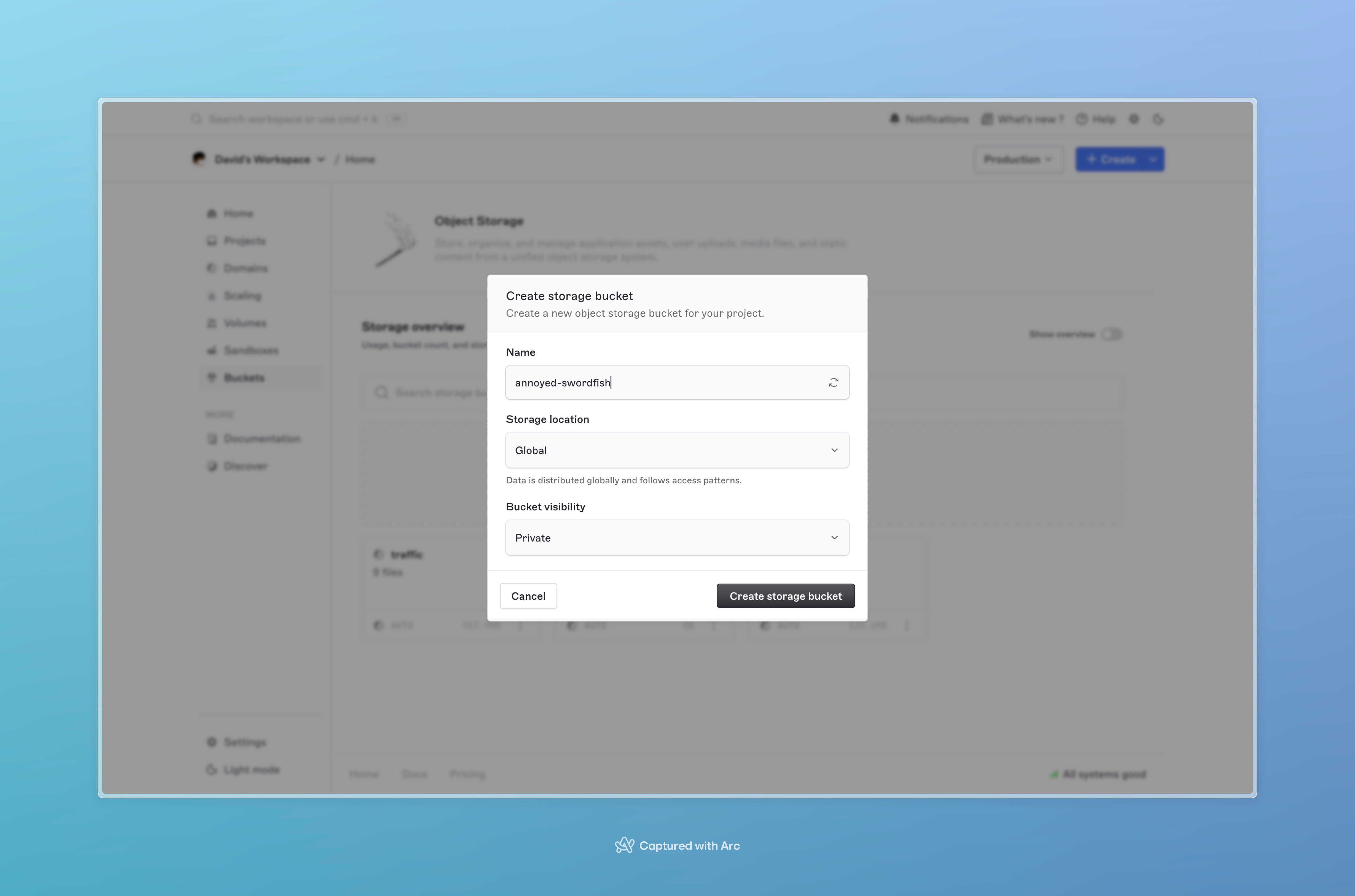
The New bucket dialog with name and region.
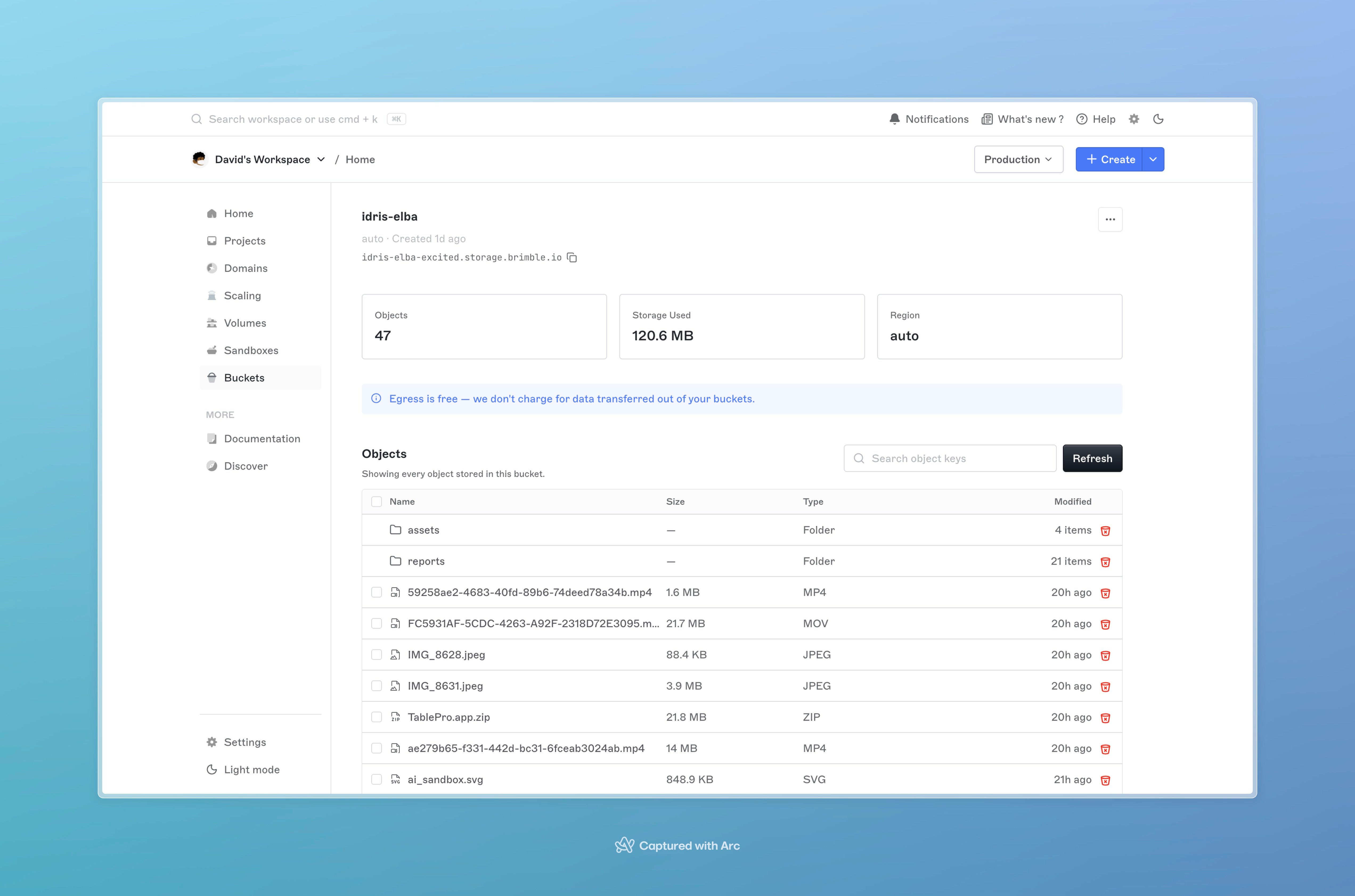
A bucket's detail page with endpoint, region, and the per-bucket tabs.
List buckets
The Buckets tab lists every bucket in the current workspace with its region, object count, and total size. Click a bucket to open its detail page. For programmatic listing, paginated withpage and limit (max 100), and a q query parameter for name search.
What’s fixed at creation
A bucket’s name and region are permanent. Neither can be changed after the bucket is created, the name is the path component every S3 URL embeds, and the region pins where the data physically lives. If you need a different name or a different region, create a new bucket and migrate the data over, then delete the old one. Object keys (the part after the bucket name) carry over unchanged. What you can change post-creation:- CORS rules (see below).
- Credentials issued against the bucket. See Storage credentials.
- Object data. See Working with objects.
CORS rules
If you upload to or read from a bucket directly from a browser (presigned URLs in a single-page app, file-picker uploads, direct video playback), the browser will check the bucket’s CORS configuration before issuing requests from your domain. Open Object storage → Buckets → <bucket> → CORS and add rules. Each rule is a list of allowed origins, methods, headers, and an optionalmaxAgeSeconds for the browser preflight cache.
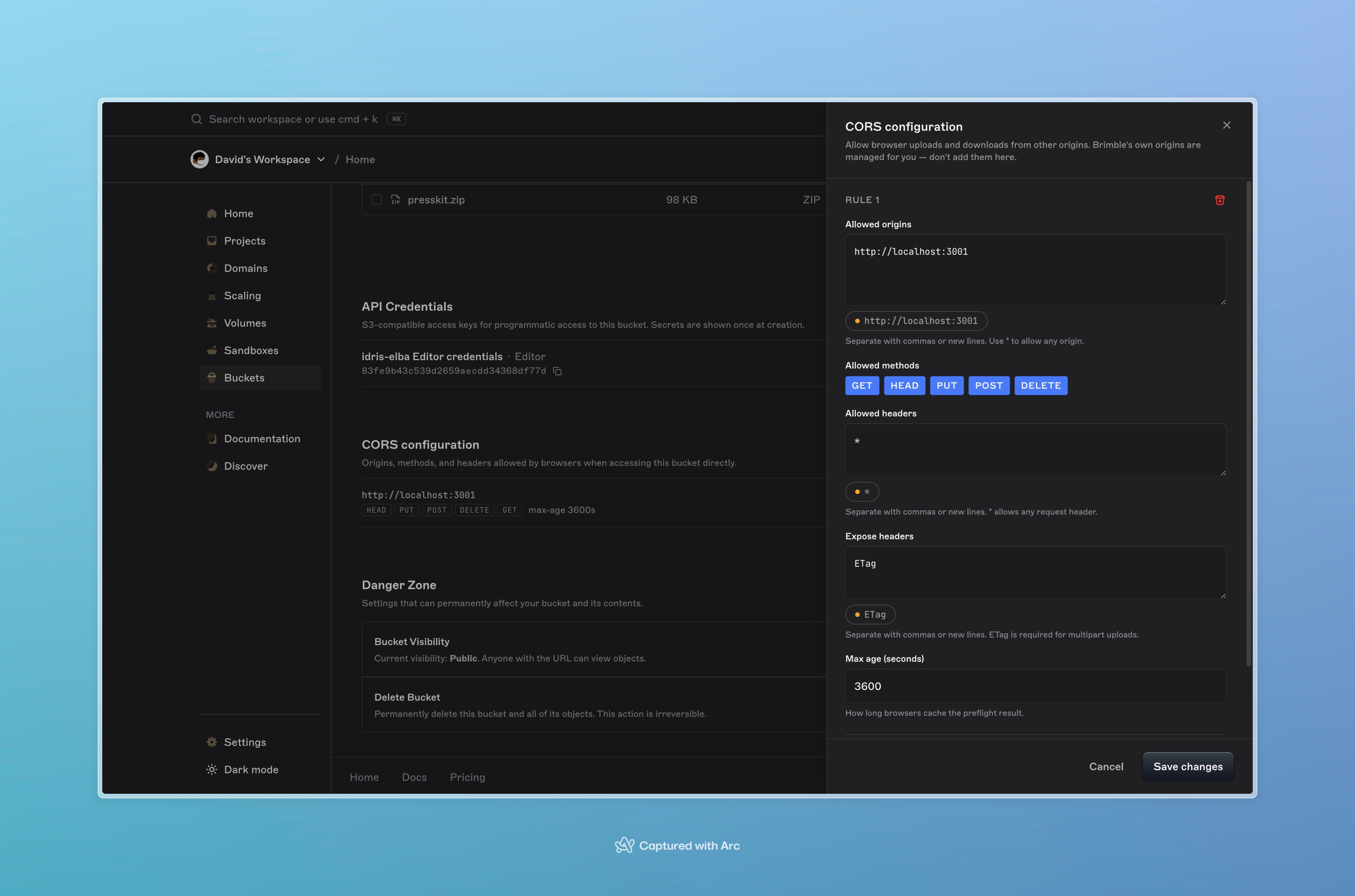
The CORS configuration panel with a rule editor.
allowedOriginsis required and must contain at least one origin. Use the exact origin (https://app.example.com), not a hostname or wildcard host.allowedMethodsmust be a non-empty subset ofGET,HEAD,PUT,POST,DELETE.allowedHeadersandexposeHeadersare optional. Use["*"]onallowedHeadersif your client sends custom headers and you don’t want to enumerate them.maxAgeSecondscaches the preflight result in the browser. 3600 (one hour) is a reasonable default.
Delete a bucket
Open the bucket’s Settings tab and click Delete bucket. You’ll be asked to confirm by typing the bucket name. A non-empty bucket can be deleted; Brimble removes the contents as part of the delete. For very large buckets this can take a few minutes to fully reclaim.Bucket overview metrics
The Overview tab on a bucket shows:- Total size (current GB held).
- Object count.
- Region.
- Endpoint URL.
Troubleshooting
“Bucket name must be at least 3 characters.” Names are sanitized to lowercase + dashes, and a too-short final slug is rejected. Pick a longer name. “Bucket name already taken.” Bucket names must be unique within your workspace. Pick a different one, or check whether it already exists under Object storage → Buckets. Browser request blocked by CORS. The bucket’s CORS configuration doesn’t include your origin or the method you used. Open the bucket’s CORS tab, add a rule for the origin in question, and retry. Browsers cache the preflight; a hard reload clears it. Can’t delete bucket. A credential or an in-flight migration is holding the bucket. Cancel any running migrations first, then retry the delete.Next steps
- Working with objects, upload, download, list, delete.
- Storage credentials, issue keys to read and write the bucket.
- Migrate from another provider, bring an existing bucket over.