
Prerequisites
- A Brimble account. Free plan works for non-paid regions; paid regions need a Hacker plan or higher.
- An API key from the profile drawer (avatar → API key). Paid plans only.
- The SDK for your language installed and
BRIMBLE_SANDBOX_KEYset in your environment.
Step 1: Create a sandbox
create provisions a sandbox and blocks until it is ready (~2–3s). The handle you get back can run exec immediately. Set a client timeout of at least 90 seconds for the create call.
region is optional. "auto" lets the server pick the best region for your account; omit the field entirely for the same behaviour. Pass a specific region ID from listRegions() to pin one.
Step 2: Run a command
create(), the sandbox is already ready. Use waitUntilReady: true on runtime calls only when reconnecting to a sandbox that may still be resuming (e.g. after get() on a sandbox you know was paused).
Stream output live (optional)
For commands that take a while, stream stdout/stderr as it arrives instead of waiting for the full buffer:runCode streaming.
Step 3: Run code in a language runtime
runCode is the language-aware sibling of exec. Hand it a snippet and an interpreter.
Step 4: Write and read a file
Step 5: Take a snapshot
A snapshot captures the sandbox’s filesystem as a restorable image. Launch a fresh sandbox from a snapshot later and get exactly that state back.status starts as creating and flips to ready when the image is built. See Snapshots for the full lifecycle, including automatic snapshots.
Step 6: Destroy
persistent: true) are detached, not deleted; you can attach them to a future sandbox by passing their volumeId.
What to try next
- Set
oneShot: trueon creation to auto-destroy the moment your main process exits, perfect for batch jobs. - Set
egress: { mode: "deny_all" }(or legacyblockOutbound: true) if you’re running untrusted code and want no outbound network access. Userestrictedwith an allowlist when the workload needs a few specific endpoints (model APIs, package registries). - Set
autoDestroy: truewith adestroyTimeout(30m,1h,3h,6h,12h,18h) so abandoned sandboxes clean themselves up. - Restore a sandbox from a snapshot by passing
fromSnapshot: "<snapshot-id>"on create. - Stream exec output live with
stream: true(TypeScript),exec_stream()(Python), orExecStream()(Go). See SDKs → Stream exec output. - Use
client.sandboxes.quickstartNode()orquickstartPython()for one-line “give me a persistent dev box” presets. See SDKs.
From the dashboard
If you’d rather click through it first:- Open the dashboard.
- Click Sandboxes in the sidebar, then New sandbox.
- Pick a template (e.g.
node-22,python-3.12). - Pick a region. Free-plan accounts only see free-tier regions.
- Optionally set CPU, memory, and ephemeral disk under Specs.
- Click Create. The form blocks for a few seconds while the sandbox provisions, then opens the detail page with status ready. From there, Terminal, Files, and Snapshots tabs cover the rest of this flow.
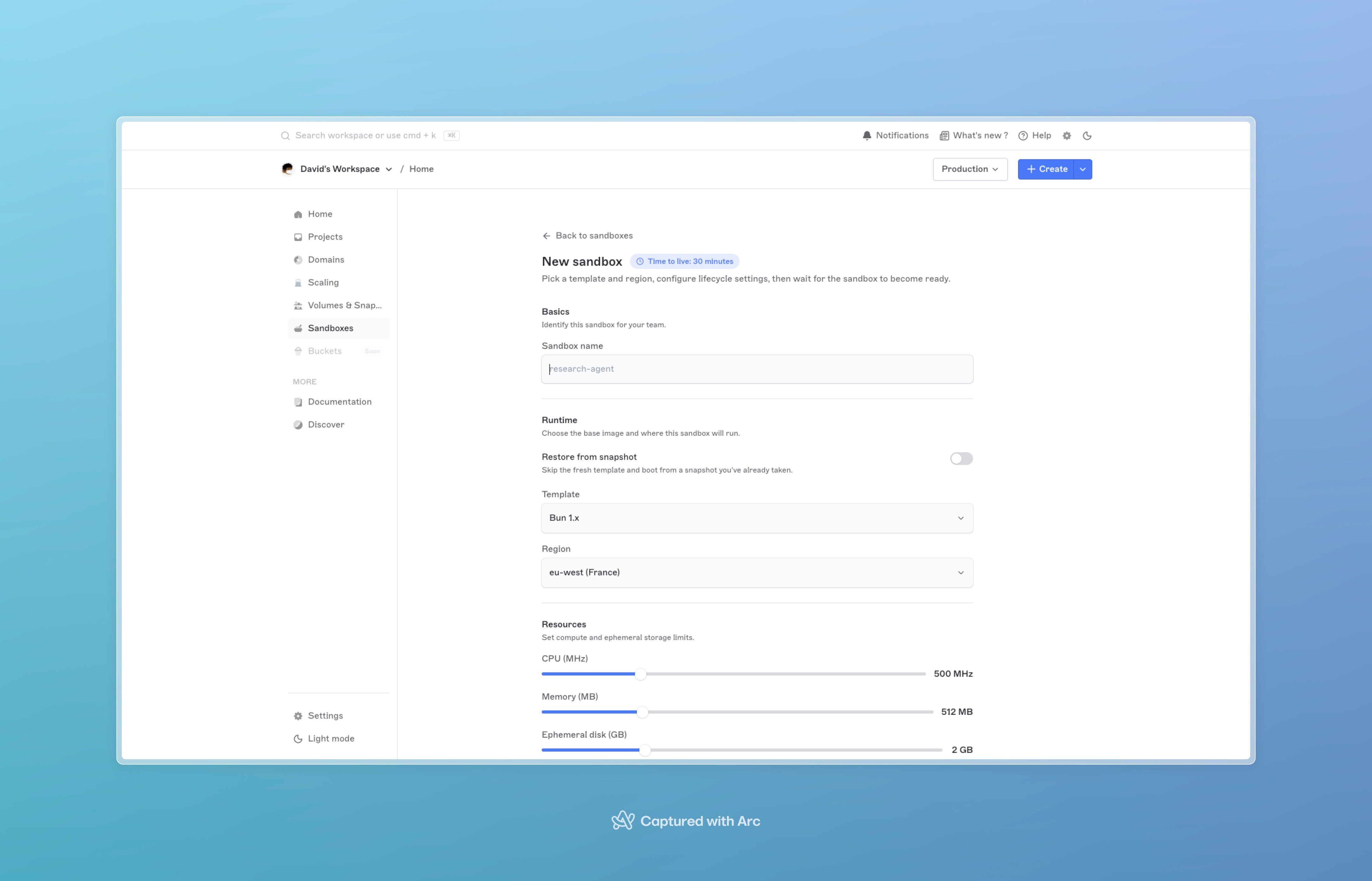
The New sandbox form with template, region, and the specs sliders.
Next steps
- SDKs, full reference for the TypeScript, Python, and Go SDKs, all the helpers, streaming, batch uploads, retries.
- Sandboxes overview, lifecycle, sizing, billing.
- Snapshots, manual + automatic snapshot flows.
- Cookbook, end-to-end recipes for common sandbox use cases.