
Models and tone
The composer has two pickers. Model comes from the catalog for your account. Pick the model you want for that chat. If you added your own provider key, choose a model from that provider so the request uses your key. See Keys and limits. Tone changes how the agent talks, and whether it asks you to review code before a pull request:
The tone is stored in the browser and reused on the next chat.
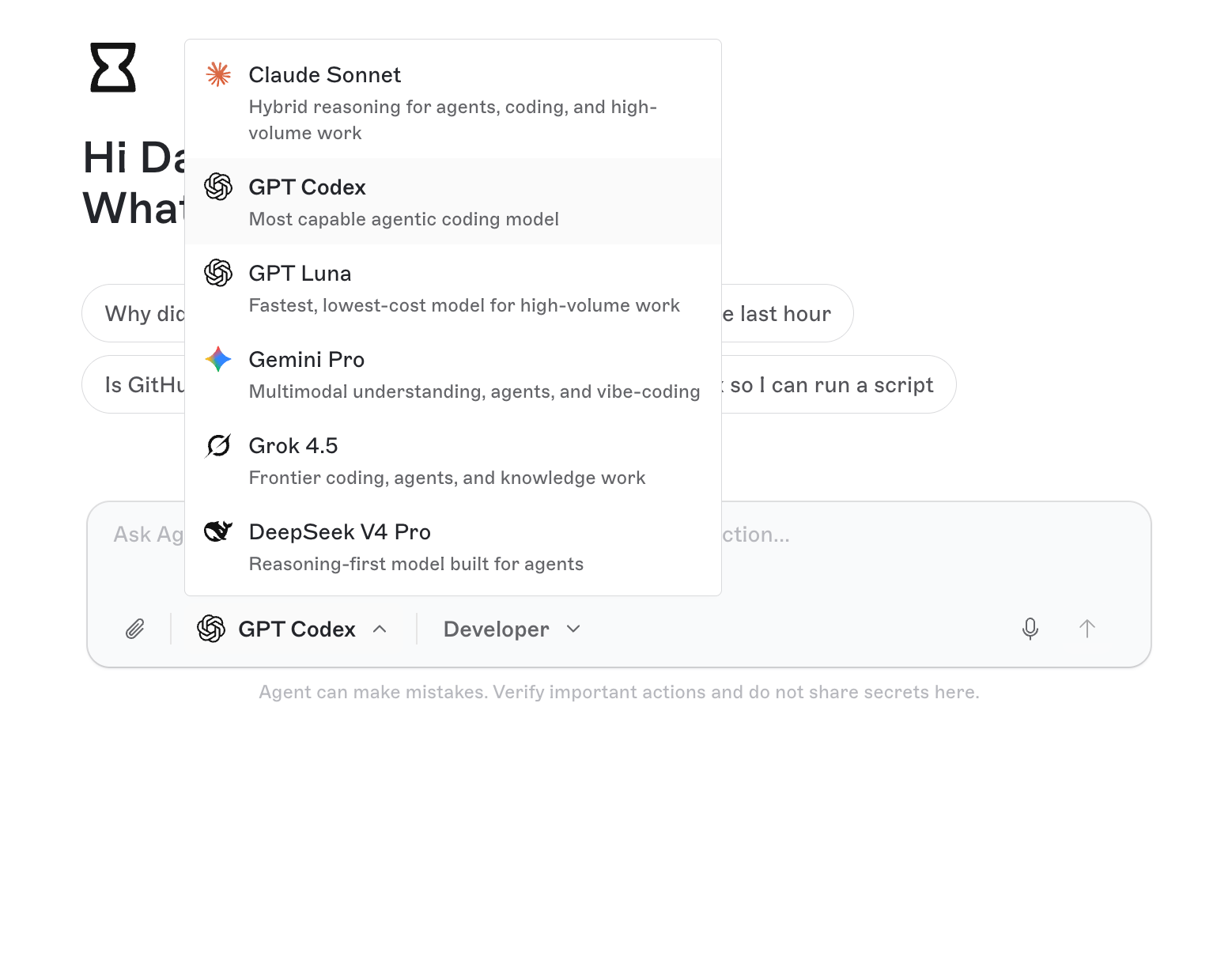
The composer with the model list open, plus tone, paperclip, and send.
Files, links, and mentions
Attach a file with the paperclip. Allowed types:png, jpg, jpeg, gif, webp, pdf, txt, md, csv, json, html, htm, log, zip. Each file can be up to 10 MB. You can attach up to 20 files on one message.
Send stays disabled until the file is stored on the chat. Images and PDFs go to the model as the file itself. Other types (a zip, HTML, or a log) are stored and referenced so the agent can use them, for example to launch a site from those files.
Paste a URL and it becomes a chip under the composer, up to 3 links. They are sent with the message.
Mention a project by typing @ and picking a slug. That names the project for the agent. If you are already on a project page, that project is in context even without a mention.
A message can be up to 10,000 characters.
Voice
If the selected model supports audio, a microphone appears in the composer. Click it to speak (up to 60 seconds), then click again to stop. The transcript is added to the input so you can edit it before you send.Suggested first prompts
On an empty chat the welcome screen offers:- Why did my last deploy fail?
- Show request logs from the last hour
- Is GitHub connected to my account?
- Spin up a sandbox so I can run a script
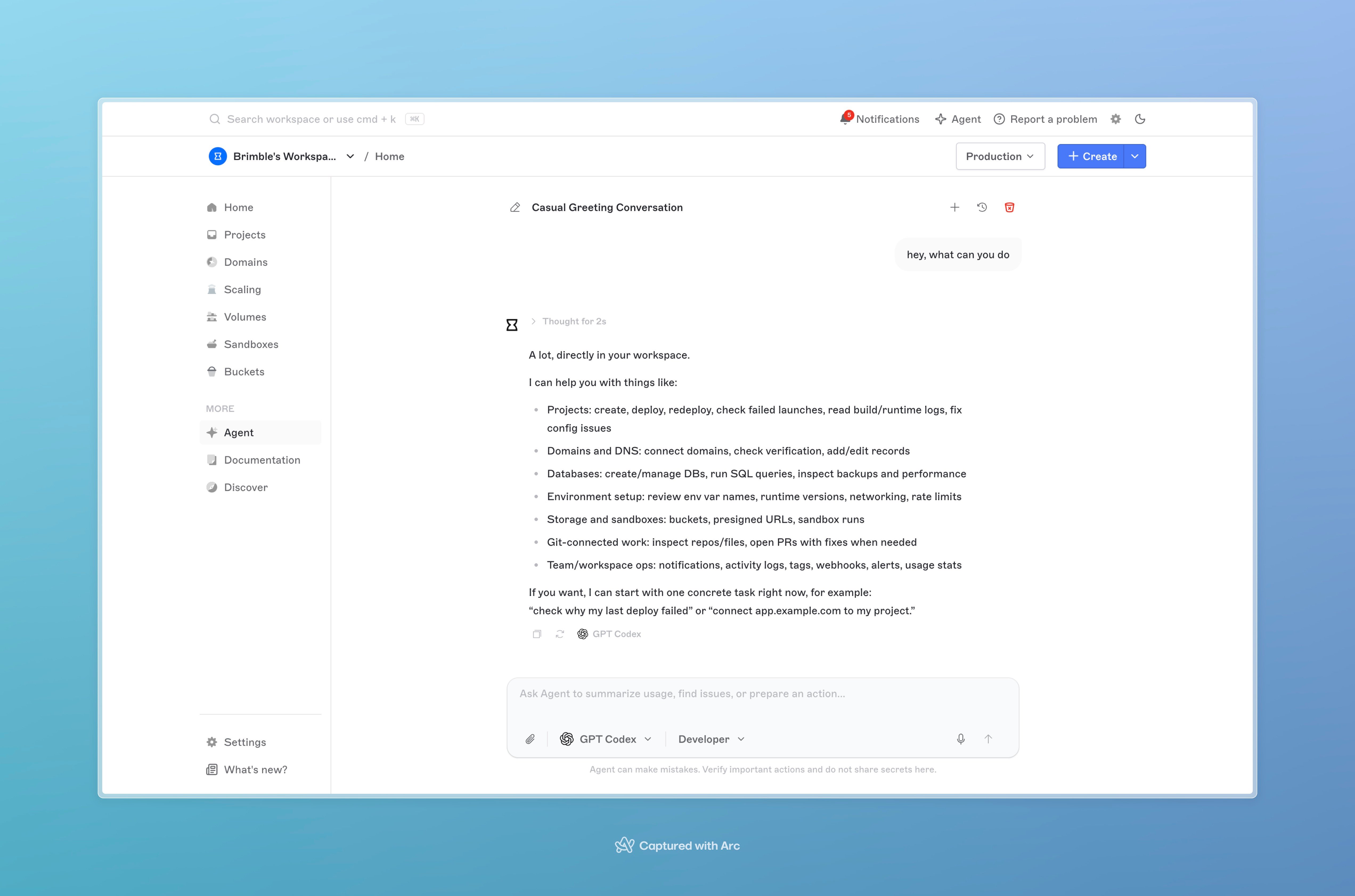
A chat after you send a request. History and a new chat sit in the header.
Other ways in
You do not have to start from/ai.
- Ask Agent on a deployment log opens the panel with that launch in the prompt.
- Add to chat on selected log text opens the panel with those lines already attached.
- Troubleshoot flows on a failed deploy can open Agent with the project already scoped.