
Prerequisites
- A project deployed on Brimble.
- A Brimble plan that includes Log Drains.
- A destination ready to receive logs: an HTTPS endpoint, or an S3-compatible bucket.
Create a drain
- Open Settings and go to the Log Drains tab.
- Click Add drain.
- Choose a destination type: HTTPS endpoint or S3-compatible bucket.
- Choose the sources to forward: app logs, system events, HTTP request logs.
- Enter the destination details and save.
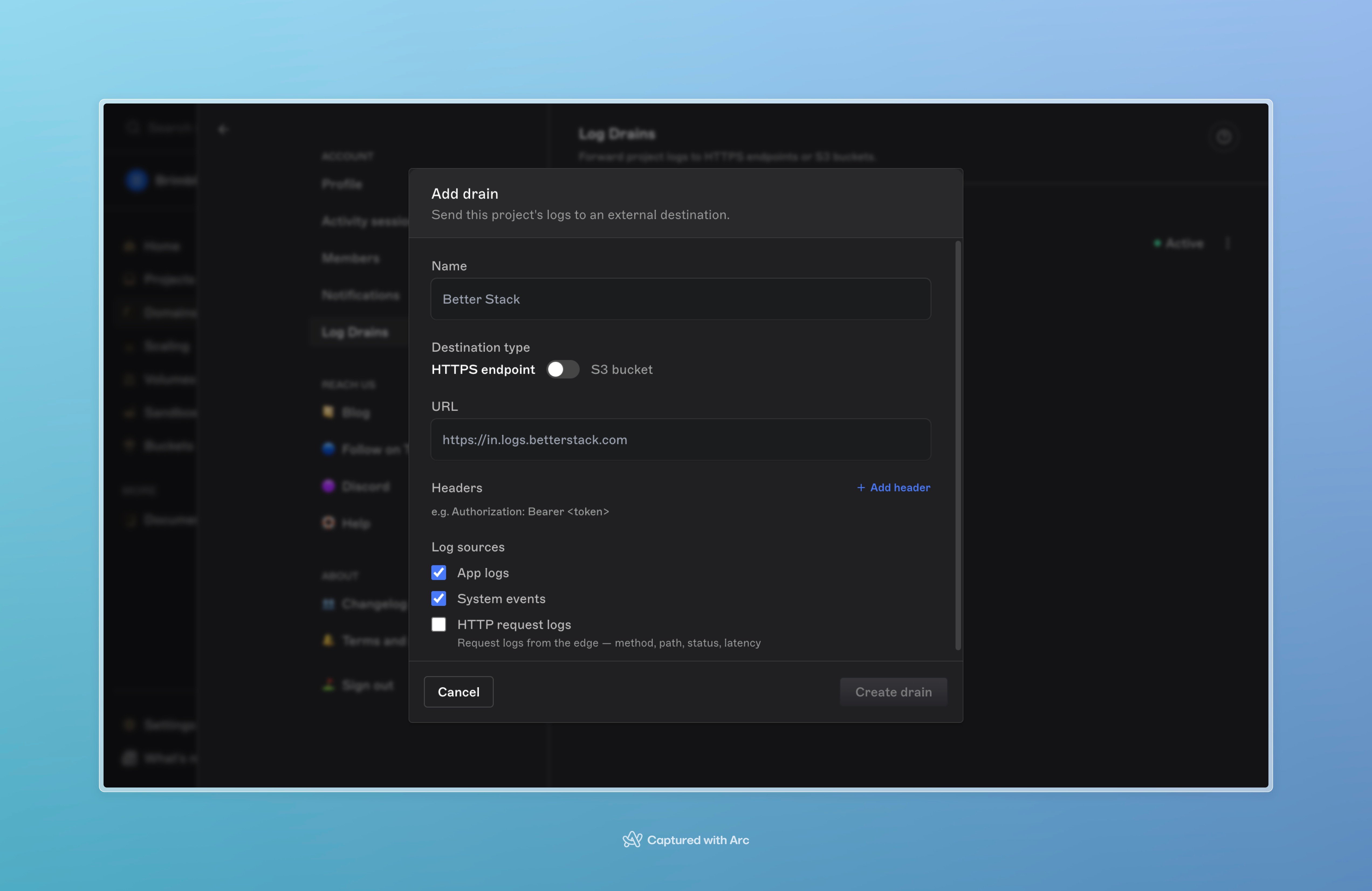
Adding a new log drain from Settings.
Subscribe a project
A drain doesn’t forward anything until a project subscribes to it.- Open the project.
- Go to its Log Drains page.
- Enable the drain to subscribe.
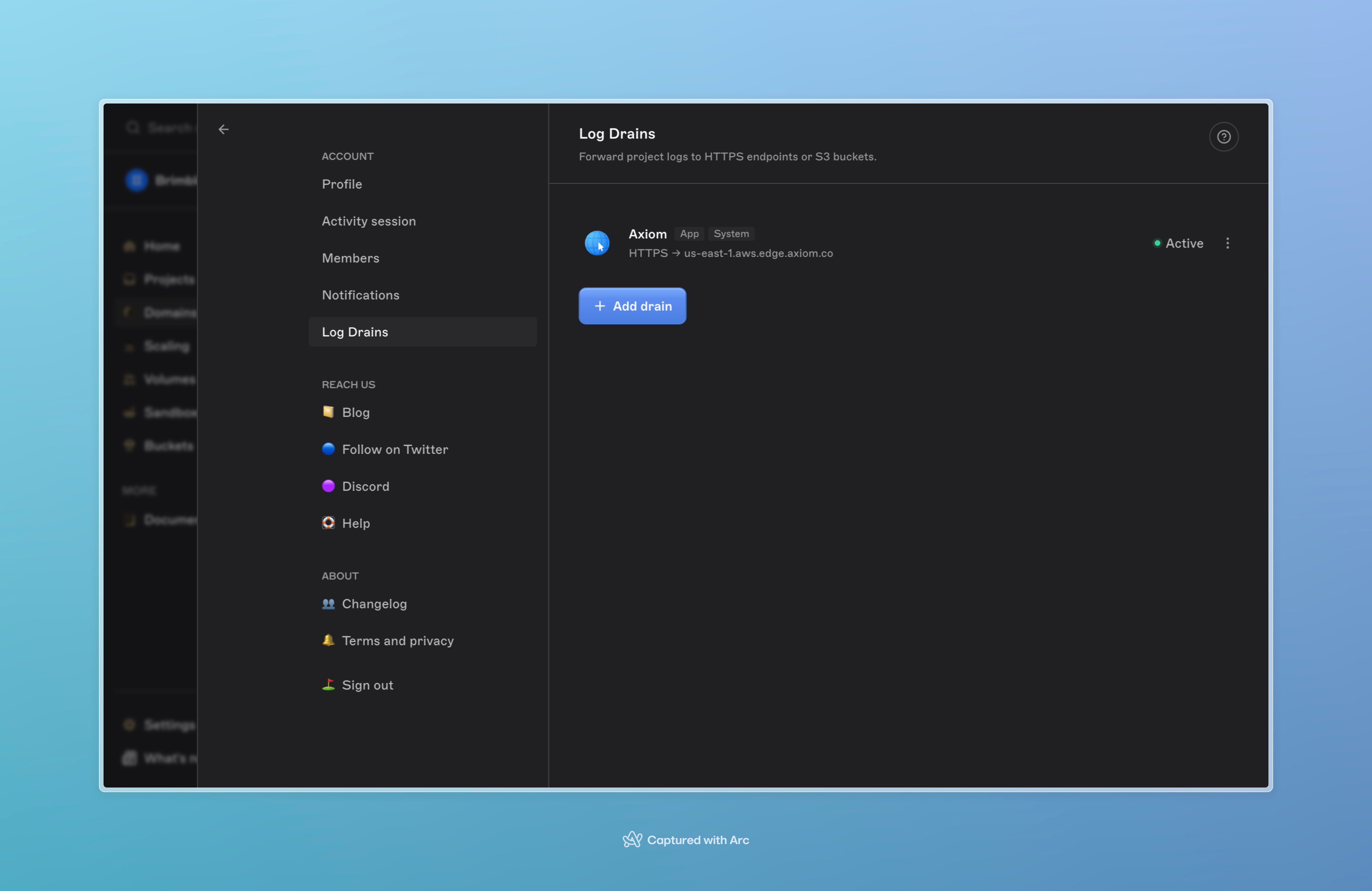
A project subscribed to a team-level drain.
Delivery semantics
- Best-effort delivery. If a destination is down, that drain’s events queue in a bounded buffer; delivery to other drains isn’t affected.
- Not a durable queue. If a destination stays broken, new events for that drain are dropped once the buffer fills.
- Auto-disabled after prolonged failure. A drain that fails continuously for 24 hours is automatically disabled, and an email is sent.
- No ordering guarantee across instances. A project running multiple containers ships logs from each independently. Use the event timestamp, not arrival order.
- No backfill. A drain forwards only logs created after it’s created; historical logs aren’t replayed into it.